Migrating to Windows 10: a few hints

My recommendation is NOT to upgrade to Windows 10 at this time if you use OneDrive. There is a crippling bug where OneDrive changes permissions on your directories where you can’t use them. If you fix the permissions, they will just go bad as soon as you reboot. Hint: Do not install Windows 10. If you have already installed Windows 10 and are having this problem, see the workaround I developed at the end of the article. Let me add that while I am generally not having a lot of Windows 10 problems, others on the Internet are reporting all sorts of problems, and a fair number of folks have gone back to Windows 8.1 or Windows 7.

I guess this is a topic I have some expertise on since I’ve migrated 6 systems—two desktops, two laptops and two tablets. Two systems were Windows 7 and the other 4 were Windows 8.1. One Windows 8.1 laptop was originally Windows Vista, migrated to Windows 7, migrated to Windows 8.1 and finally to Windows 10.

My first bit of advice about Windows 10 migration is to watch out for the offer of Express Settings at the end of installation. Selecting the Express Settings may be sharing more information with Microsoft than you are comfortable with sharing. Hint: do not accept Express Setup.

Several of my systems did not work right immediately after upgrading. There were a number of weird symptoms, but all were cured by rebooting. Hint: reboot your computer after installation before you try to use it.

The first annoyance in the migration is that the Windows 8.1 machines, which all had nicely configured start screens, ended up with start menus that were jumbled together or missing things. I had assigned my programs into groups—all of which became jammed into one, and a bunch of new stuff (new Microsoft Apps) was added in the front, like the Groove Music and Mail apps. Each system required time to manually unscramble the apps into meaningful categories again, remove the stuff I had no interest in, and to add things that got left out. Hint: take screen shots of your start screen to make the setup quicker under Windows 10.

There is a major SNAFU in Windows 10 and OneDrive that may put you in a world of hurt. Every time you boot your computer, OneDrive may reset permissions on your Pictures, Documents and other folders so that you don’t have access to them, even if you are signed on as the Administrator for the computer. There is a workaround for this problem at the end of this article. Hint: Don’t install Windows 10 until Microsoft fixes this problem or check if you feel comfortable with the steps in my workaround.

Windows 10 decided to convert my home network into a public network, and then to shut down all the services and features reserved for private networks. That meant that all my machines were no longer discoverable to each other. This problem can appear in several ways depending on what you share. Hint: go to the Network Sharing Center (right click on the network icon in the system tray) and select the appropriate type of network.

All of my systems belonged to a homegroup. After installation, they didn’t. I had to re-join each machine to the homegroup. My old homegroup password was not changed. You can fix this by right-clicking the start menu, selecting Control Panel and searching in it for “homegroup.” Hint: re-join your homegroup.

This brings me to a pet peeve about Windows 10, the search. While it seemed that Windows 8.1 search did a great job of locating programs and settings, Windows 10 does not. One thing to understand about Windows 10 is that there is a good deal of asynchronous processing going on, so that while you might see something displayed in a list, that doesn’t mean that the list won’t get longer if you wait. You could, in the previous example, have typed “homegroup” into the desktop search bar and if you waited long enough, the Control Panel homegroup applet would have appeared. In my limited experience, two machines will respond differently to the same search. For example, “uninstall” will get you different results on different machines, and on one of mine, the “Uninstall a program” control panel applet has yet to appear.

If you had not previously signed on with a Microsoft account (as was the case for my two Windows 7 machines), you may want to change to it. You’ll be fighting an uphill battle unless you do, for example you won’t be able to use the new Cortana digital assistant. Hint: when asked to sign on with a Microsoft Account, let it.

One of my Windows 8.1 tablets has a MicroSD card where I keep my file history, downloads and pictures. I’m not sure whether this happened during the Windows 10 upgrade or before, but somehow the drive letter got changed from S: to D:, resulting in some program errors accessing folders. This change also caused the Camera to stop working. Hint: check all your system folders (Documents, Music, Pictures, Downloads…) and make sure they are assigned where you think they should be. To change, right-click on the folder, select properties, and look under the Location tab. Also check your Libraries in the File Explorer to make sure there are no old entries to the prior drive letter.

Cortana is now generally working on my systems, but for some reason it was enabled on some and not on others. If your system won’t recognize “Hey Cortana” then go to the Search Box and enter “Cortana” and you will be directed to the Cortana settings, where there is a switch to enable “Hey Cortana” recognition and a training button to train it in the way you talk. There is a new search box next to the start button, and it has a microphone icon—click that if “Hey Cortana” isn’t working, and the voice recognition will likely work. As I said before, Cortana requires a Microsoft Account. When you first begin, you won’t see the microphone icon until you click in the box and respond to the “Get started” button on the search panel. Clicking on that is also a pre-requisite for Cortana. My hasty examination of this startup dialog is that you have to agree to share a good deal of information with Microsoft to get it to work (stuff I hadn’t wanted to share in Express Setup).

One small issue for users of Microsoft Office 2013 on the Microsoft Surface hardware, is that the button on the Surface Pen starts the freebie version of OneNote, not the advanced version in Office 2013. There is apparently no way to change this at present. Hint: add OneNote 2013 to the task bar.

I had some issues with File History after migration. Two of the machines being migrated were Windows 7 Home Premium versions. Somewhere along the line, the File History that previously was directed to a shared location on one of my computers got turned off for those machines. Under Windows 10, there are two settings paths: Under the Action Center (click the Action Center Icon on the System Tray or type Windows-A) there appears at the bottom (you may have to wait for it) a list of buttons for immediate actions, one called “All Settings.” Under that you can set up your File History, but you cannot set it to a network location with the Home edition! If you type “File History” in the search box next to the start button, eventually there should appear “File History: Control Panel.” That one will let you save the history to a shared drive. Hint: check that your File History is working as intended.

The Skype “Modern Windows” app cannot be installed under Windows 10, so don’t waste time trying. Something new is supposed to be available later in the year. Hint: Use desktop Skype for now.

OneDrive is another area of concern because it works differently under Windows 10. Before, one could see all the files on the OneDrive, whether they were synchronized or not. Opening a file caused it to be downloaded. Now you select the folders to synchronize, and you will see only the files in those folders. Reports are that there will be a new scheme released later in the year, but until then you’ll have to think through what you will need to see on each machine. Until you set this up, Windows 10 will prompt you periodically to set it up. Finding the setting if not responding to a prompt is not obvious. One might look for a setting in the Control Panel, or perhaps under Properties for the OneDrive folder, or as as a right-click option on the OneDrive folder. Actually, what you have to do is to right-click on one of the folders under the OneDrive, and select  “Choose which OneDrive folders to sync.” From that, you can set them all. Hint: develop a plan for what you need to see on each machine and create folders to isolate what is automatically downloaded from what is not.


Workaround for Windows 10 permissions problem with OneDrive

I now have all six of my machines solidly working (rebooted several times) and OneDrive is running.

Here is the procedure:

  • Go to each high-level folder with File Explorer where you are having problems (e.g. C:\Users\YourNameHere\Documents) and right-click, select Properties | Security | Advanced. Make sure the the “Enable inheritance” button is not showing. If it is, click it. Click OK.
  • Go to the C:\Users folder and right-click. Select Properties | Sharing | Advanced sharing
  • Click Permissions
  • If you don’t see your own account listed, click Add.
  • Type in your sign on account, and click OK.
  • Then click the Full Control box and OK to close the dialog
  • Go back to your Documents folder with File Explorer and verify that you now have your user account listed under Properties | Security.

I consider this is a workaround, an alternate way of providing the security you need that survives a reboot. Still, it’s not too evil and everything works.

Posted in Technology | Tagged , , | Leave a comment

Hey Cortana, start control panel

How Windows 10 meets expectations

I wrote an article about how I was looking forward to Windows 10. As I get experience with Windows 10 I plan to put in this article just how well it stands up against expectations. I installed the Windows Insider Build 10162 today.

HMM3

First, and foremost, Heroes of Might and Magic III seems to run just fine. What a relief! I must admit though, that after around 15 years of playing this game, I’m not doing it so often anymore.

The Start menu

Yes the Start menu/panel is back. Basically what was on the Windows Start Screen is now under the Windows logo button on a panel. Like the old Start Screen (which is gone), you can configure and group applications. All applications now run on the desktop. Like Windows 8.1, right clicking on the Windows logo start button shows a pop-up menu with the same stuff it did in Windows 8.1. In “tablet mode” the start menu overlays the desktop and appears like the old Start Screen. A minor annoyance is that it scrolls vertically, while the Windows 8.1 Start Screen scrolled horizontally. So all in all, I think this new start menu works.

Cortana

One of my initial gripes about Windows 10 was how hard it was to find the Control Panel. This was my mistake for expecting it to be on the start menu rather than on the start pop-up menu just like where it was in Windows 8.1, but I also discovered that I could say “Hey Cortana, start control panel” and up popped the Control Panel. That really pleased me.

Better tablet experience

This remains to be seen as I actually try to do stuff. Certainly some advances have been made in making more things available without switching from the Start Screen to the Desktop, or now we would say switching from Desktop to Tablet mode. As time has passed, I am finding Windows 10 to be natural in operating, and Windows 8.1 a little awkward. This is a good thing.

OneDrive

To be determined.

Hopes

These will have to wait until I have upgraded all my systems to the official release version. So far, all of the software from before, including the stuff I wrote, does work under Windows 10.

Posted in Microsoft Surface, Technology | Tagged | 3 Comments

Looking forward to Windows 10

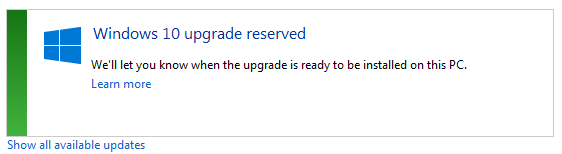
There are 6 Windows computers in the house (not including a phone), and yesterday those little Get Windows 10 icons imagestarted appearing in the system tray (you may have to install updates for this to appear, specifically the optional KB 3035583). Windows 10 is supposed to start rolling out July 29, and is a free upgrade for non Enterprise Windows 7 and 8.1 users. After you click that icon, you will be given the opportunity to “reserve” your copy, and after that you’ll see a new notification in Windows Update.

image

So here’s why I’m looking forward to Windows 10:

The Start Menu is back

The single-most stupid thing (IMO) Microsoft did with Windows 8 was losing the start menu on the desktop. The desktop became harder to use because of it. I have to do various extra clicks to get where I’m going for this reason. It turned happy Windows 7 users into confused Windows 8 users.

Cortana

I’ve watched with interest how effectively some people are using voice recognition on their phones, including dictation. Siri and I simply do not get along. Nevertheless, I believe that voice navigation and dictation are promising features, and I want an opportunity to get serious in trying to master them. I know that Windows 8 has voice recognition, but I haven’t gotten into it. Windows 10 has the Microsoft’s digital assistant Cortana, and I think it’s time now to get busy with voice recognition in general.

Better tablet experience

I am hoping that Microsoft has finished the tablet part of Windows 8.1. The problem was that one had to go all over the place looking for settings. I like the Windows 8.1 tablet interface, but too many things required access to the desktop to accomplish. I also hope that following on the heels of Windows 8.1, we’ll see a new tablet enabled version of Microsoft Office, and I already have my Office 365 subscription ready to enjoy that.

Free upgrade

One of my two main desktop systems is still running Windows 7. I’ve added USB 3.0 ports to that system, that are not natively supported by Windows 7. It has an SSD main drive, and I’m really looking forward to the faster boot times I see on my Windows 8.1 tablets for this system. Switching back and forth between Windows 7 and 8.1 on the side-by-side desktop systems is a drag.

OneDrive

OneDrive has really gotten my attention. I used to carry around a flash drive to have files with me on the go. I still carry the flash drive, but I never use it. It’s all OneDrive now. The convenience, plus the huge storage space bundled with the Office 365 subscription, turned OneDrive into an essential service for me. Windows 10 is supposed to offer a better interface for controlling what is and is not synced with the local system, an essential feature when you have a terabyte of cloud space, and a tablet with only a fraction of that. It also supports fetching files on a remote computer (already available), but it’s starting to make sense to put this stuff in the cloud. Cortana can even search files on your OneDrive, but not synced to the local computer.

Hopes

  • I hope my Windows Vista era laptop (which has gone from Vista to Windows 7 to Windows 8.1) makes it to Windows 10, and that the fingerprint recognition hardware will still work.
  • I hope that there will be a smooth experience using my computers, whether they are touch-enabled or not.
  • I hope Heroes of Might and Magic 3 keeps working.
  • I hope I will be able to backup all my devices to an external USB hard drive on one of the computers (right now the Windows 7 to Windows 8.1 combination doesn’t work).
  • I hope all my software will still work (especially a concern for the Windows 7 desktop).
  • I’ve used every version of Windows since 3.0. I hope this latest one will mark a sea change in the amount of time I spend wrestling with computer problems vs. the amount of time I spend enjoying my computer for entertainment and productivity.
Posted in Technology | Tagged | Leave a comment

Why I will never buy another computer from Dell

I may buy another Dell computer, but not from Dell.

I go way back with Dell. I can’t count the number of Dell systems I’ve had over the years. I know there are three Dell desktops in the house, two Dell laptops and 2 Dell tablets. When I was working, we had all Dell equipment, and we were a Dell reseller. They have been good systems.

The story starts in 2008: a waiter at a hotel restaurant in Atlanta skimmed my credit card, and ordered expensive consumer electronic items from about everyone you could imagine, including Dell, Apple, Tiger Direct, etc. – computers, flat screen TV’s—you name it. My credit card company called me up in a couple of hours to see if the activity was fraudulent. I said it was, and I never heard anything more about it.

Fast forward past several Dell systems to this past February. I bought a desktop system from Dell, a high-end home system. I tried to order it online, but I kept getting contradictory pricing information (one page showed the system, and the next page in the checkout was $100 more with no indication of what the $100 was—it was tax, but they never itemized the tax on the check-out pages), so I ended up in online chat with a Dell representative and he persuaded me with a 10% back gift card to finance the system, 6-months no interest. I gave him all the financial information. Time passed and I received a free tablet computer that was part of the promotion on the system, but I never got the Dell order confirmation email. So I went on the Dell site, logged in and found that there was no order listed for me. I found that the system and ship date were listed under my warranty information, but no order.

Continue reading
Posted in Bad Commerce | Tagged | 6 Comments

Fading memories

My wife and I returned from a trip to Argentina and Chile last month, and already the memories of that memorable trip are starting to fade. What was that bird called? Which town were we in? Today I remember you Arlene, Bob, Lydia, Kit, Jane, Mark, Brian, Carol, Paula, Stephen, Mike and Dianne, and I remember our leader Graciela, of course. If you asked me for a similar list from last year’s trip, I would draw a blank, and will probably be unable to make this trip list 6 months from now.

That’s one reason I take photos. I’ve found limited use for my photos to show others. I put a few on Facebook, and people like them. But the real value of the photos is for my benefit, as they help me relive the experience.

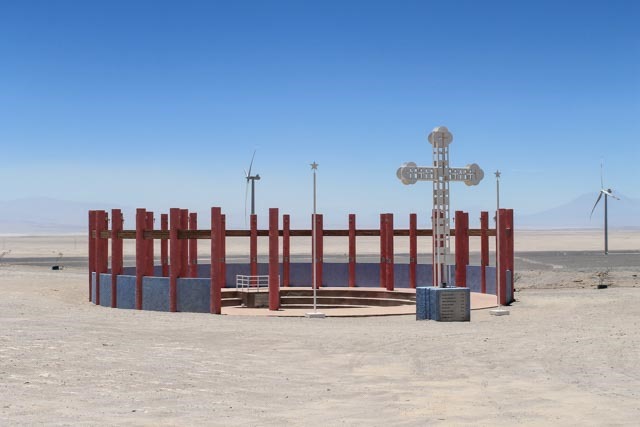
I thought that by writing about the trips, perhaps I might preserve even more. That leads to this article and the image below taken in a remote desert location between Calama and San Pedro Chile.

IMG_5622

Each of those red vertical poles represents a person killed by a cruel dictatorship for no good reason and dumped in the desert, as part of what was called the “Caravan of Death.” This and other images from Argentina and Chile teach me what human beings can do when they are afraid: the seek safety in powerful leadership and in order and in a less-threatening version of the truth. It teaches me what humans do when they get too much power.

I saw stunning landscapes; rivers, lakes and waterfalls; wonderful animals and trees; and fascinating people. But the one thing I hope I never forget is the image above.

Posted in Travel | Tagged , , , | Leave a comment

Blog expands to travel topic

When this blog started, I wasn’t much of a traveler except for business. Now that I’ve retired, my wife and I travel a fair amount. “Travel” as a topic has been added to this blog and I intend to write some articles about the places I visit from my own perspective. These won’t be destination reviews—those I put on TripAdvisor.com, but more about how travel changed me.

Posted in Travel | Tagged | Leave a comment

Surface Pro 3 backup

I didn’t have a backup of my Surface Pro 3, so when it because unusable, my only option was to do a Refresh, which uninstalled all my applications, and trashed all my settings, product registrations, 100 Windows Update installations, email setup and on and on. It took about a day to put the system back together after that, and I was not able to re-install one application at all. I’m still finding things that don’t work right.

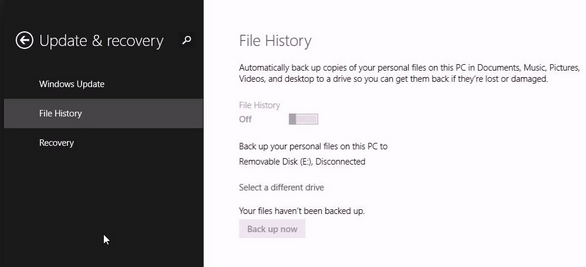
Oh, if I only had a backup. Why didn’t I have a backup? They say an image is worth a thousand words, so here is the image:

image

There is no backup except the File History “Back up now”, which only backs up user files, not the operating system or applications.

The reason I’m writing this article is to say that there really is a backup in Windows 8.1—you just can’t find it so easily. Surprisingly, the real backup is under File History, the other File History. Go to the system search and enter “File History” and select the one that has a picture of a folder next to it. This takes you to the desktop. In small type in the extreme lower left of the File History window, there is a “System Image Backup” link that lets you really back up your computer.

To restore, restart your computer while holding down the F8 key (yes, you need a keyboard). Then use the Advanced Repair Options.

Posted in Microsoft Surface | Tagged , | Leave a comment