
The ATS200 is a feature rich shirt-pocket portable LW/MS/SW/FM/AIR band radio with RDS, CW and SSB. Its user interface is primarily through a touch screen, plus a knob and three unlabeled buttons.
I call it the “Raddy” ATS200 because their product description puts their name in front of the model; however, they are just a reseller. It’s a radio first available in September of 2022, the date of its V2.5b firmware compilation, the same firmware version Raddy first shipped in May of 2024, and what’s on my unit today. Its old firmware exhibits bugs that I’ll detail later.
The Manual
I give the manual a “C-” grade because it’s unfinished. It omits important information forcing the operator to experiment to find out how things work. Some things remain a mystery.
- The display battery indicator indicates battery voltage. The manual never tells you that tapping on the icon switches the display to battery charge percentage
- The FM “soft button” is never mentioned (perhaps for good reason, more later on).
- Every time the radio is turned off, the Low Noise Amplifier (LNA) setting reverts to OFF. It has to be turned on manually with every use.
I feel the temptation to write my own manual as I have done on other rare occasions, but I will just leave this blog post as a supplement.
Operation
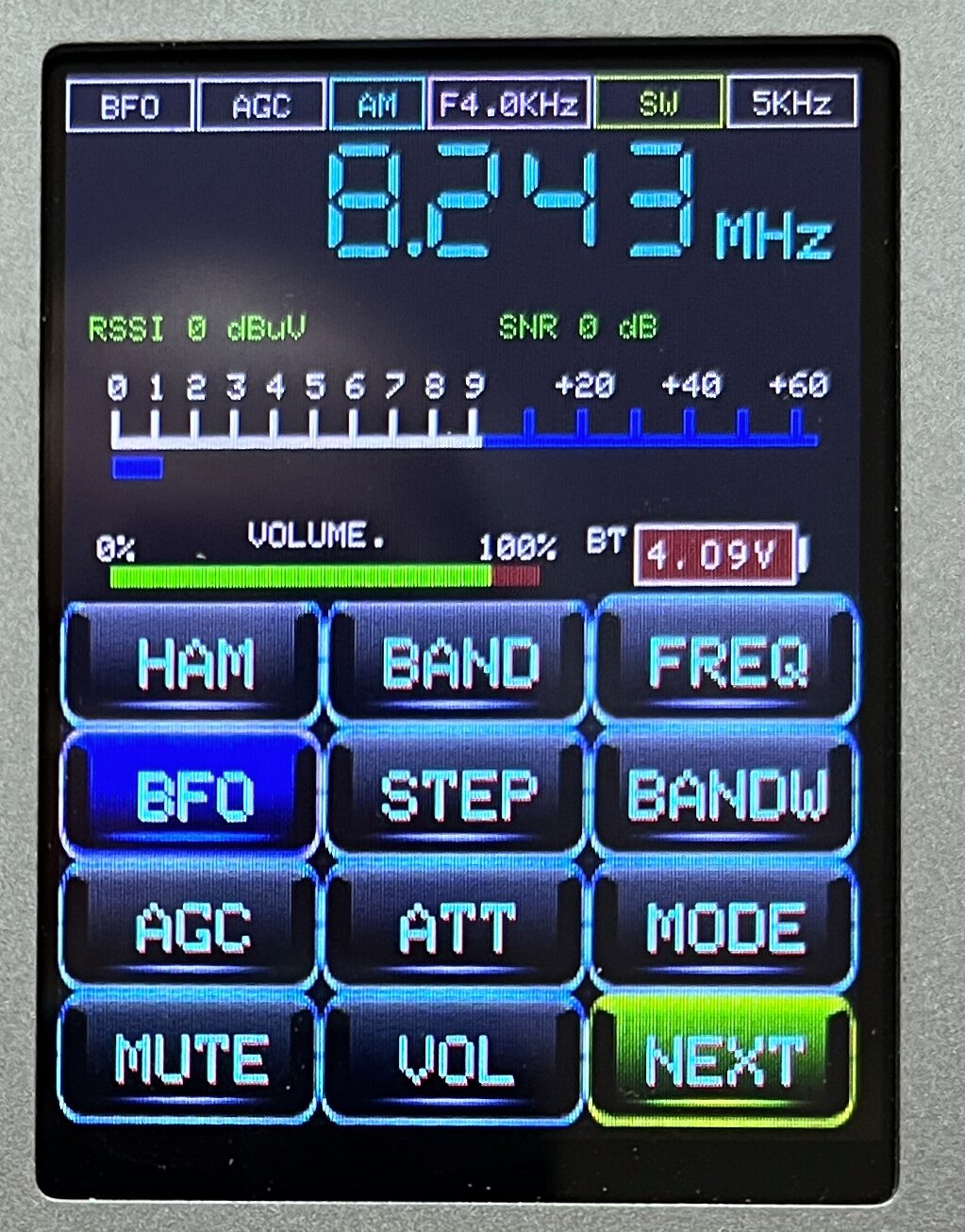
The ATS200 is not particularly difficult to operate because of the clearly labeled “soft buttons” on the touch screen (see photo at the top of the article). The display itself can be viewed (from top to bottom) in the following sections:
The top row contains status information:
- BFO active (CW only) highlighted when on
- AGC (automatic Gain Control) or ATT (attenuator value)
- Mode (AM, FM, LSB, USB, CW_
- Bandwidth
- Band
- Tuning step

Below that is the currently tuned frequency, and next downward is either the FM RDS information or the reception parameters, RSSI (Relative Signal Strength Indicator) and SNR (Signal to Noise radio). On the FM display, RDS must be turned off to show the RSSI and SNR; however, the next “S-meter” section snows on both.
Last before the soft buttons is the volume setting display, a BT icon indicating Bluetooth is available, a LNA amplifier icon that shows when the feature is active and a battery charge icon; tap the icon to switch between battery voltage and charge percentage. To the right of the battery icon are TL and RL indicator showing the touch screen and rotary knob lock indicators (controlled by the lower left button below the display).
Next are the soft buttons. Some of the buttons navigate to other displays, and some are toggle switches. When enabled, the toggled buttons are highlighted. If a button is RED then it’s active. BLUE means inactive or off. In the example below, the BFO button is blue.
The top 3 buttons, HAM, BAND and FREQ all have to do with tuning. Pressing HAM presents a list of supported amateur radio bands, designated by their wavelength in meters. BAND presents a list of all the other supported bands: shortwave bands in meters, LW, MW, FM, CB and AIR. FREQ displays a numeric keypad where a direct frequency could be entered.
BFO (beat frequency oscillator) is only used in CW mode (more on modes later on) and sets the audible tone frequency.
STEP determines the frequency change when the tuning knob is turned, and the possible values vary by band. Note that the radio does not force tuning to multiples of the step value; for example when tuned to 1101 MW, a 10 kHz step will advance to 1111. The MW step is the same setting as the LW step. Here are the specifics, not included in the manual:
| Mode/Band | Step values (kHz) |
|---|---|
| LW/MW | 1, 5, 9, 10 |
| FM | 10, 100 |
| SW/CB | 1, 5, 9, 10 |
| AIR | 1, 5, 10, 100 |
BANDW sets the bandwidth:
| Mode/Band | Bandwidth (kHz) |
|---|---|
| AM/AIR | 1, 1.8, 2, 2.5, 3, 4, 6 |
| FM | 40, 60, 84, 110, AUTO |
| SSB/CW | 0.5, 1, 1.2, 2.2, 3, 4 |
AGC (automatic gain control) toggles this feature on and off.
ATT is the attenuator. It is basically a manual gain control, overriding the AGC to reduce RF amplification.
MODE selects the operating mode: AM, LAB, USB, CW for all bands except FM, where the button is disabled.
MUTE mutes the audio output, either speaker or Bluetooth.
VOL turns the knob into a volume control. Clicking the knob once has the same effect.
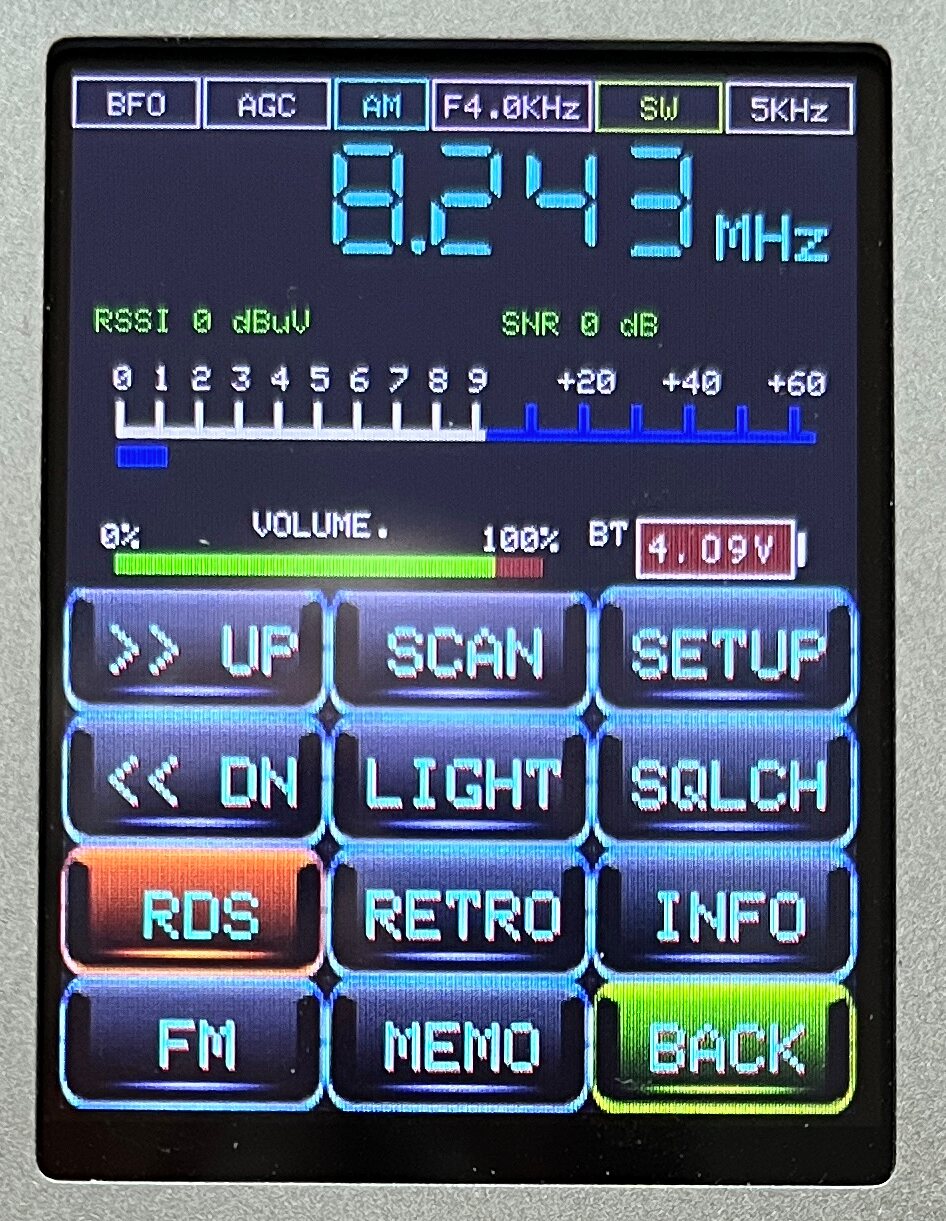
NEXT displays the second page of soft buttons.
>> UP and << DN are scanning buttons, instructing the radio to scan to higher or lower frequencies respectively, stopping when a station is found.
SCAN scans the current band, when finished displaying a graphic representation of the stations found. Select the meter band (or MW or FM) and press SCAN. Here’s what the output looks like:
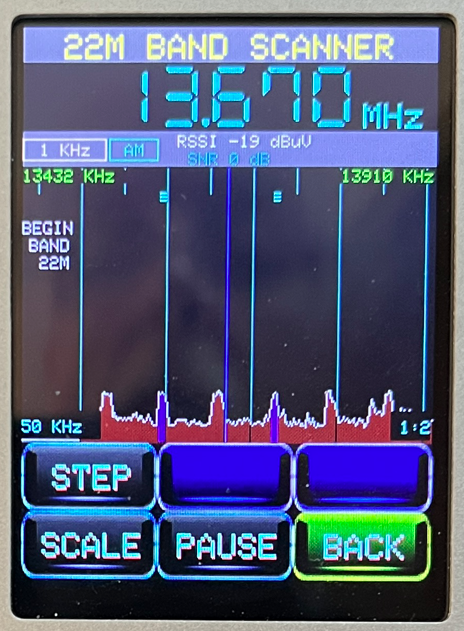
This is not a real-time display but rather a static compilation of the scan. The tuning knob moves the cursor across the screen, selecting the frequencies. STEP sets the tuning step and SCALE lets the magnification.
SETUP brings up a series of switchable options one might speculate about. They aren’t in the manual.
- SI473X
- FM start at 64 MHz: If checked, the FM band starts at 64 MHz, otherwise 87.5. My radio came with this checked. I turned it off.
- Seek AM 1 kHz: I presume this is the step rate for the Seek function for non-FM bands.
- USAGE
- RDS only FM button: Regardless of whether RDS is enabled or not, it this option (set by default on my radio) prevents it from showing on the regular display. It only shows when the FM button is used (more on that later) and you definitely don’t want that. So turn this option off.
- Digit Backlight:
- Retro Langage RL: This refers to the radio’s Retro display. Mine is not set. I guess that setting it changes the display to Russian.
- DISPLAY
- Screen Saver: Blanks display after non-use. Mine is set on, but the display is always on.
- Display Light Off: Mine not set.
- Saver time in min: Time before screen blanks. Mine came set to 10.
- Vertical screen: When set, the display is reoriented to a horizontal view, resembling the ATS-25 radios. (Give it a try for fun.)
- SCAN
- Minimum scale: Mine set to x8.
- Maximum scale: Mine set to 1 : 8.
- Auto Scale: Mine set on.
- Scan Accuracy: Mine set on.
- HARDWARE
- Wi Fi On: Mine set to off. I turned it on, but I could detect no change.
- Battery show: Mine on.
- Beeper on: Mine on. Not sure what it does as mine doesn’t beep.
- Bright disp power: Mine off.
- Bluetooth
- Bluetooth Power C: Mine on.
- Bluetooth Clean: Min of. My guess is that this clears prior pairing information
- DEFAULT
- Load Default Memo: My guess is that there is some set of stations memorized. Mine is off.
- Reset to Factory: Mine is off.
LIGHT changes the knob to a screen brightness setting, with the value shown where the volume usually resides.
SQLCH displays the current value of the squelch in place of frequency on the display. Set it to 0 to turn squelch off. The squelch value set applies to all bands.
RDS enables RDS data display. You must use turn off the RDS only FM button setup option to view the data on the normal display.
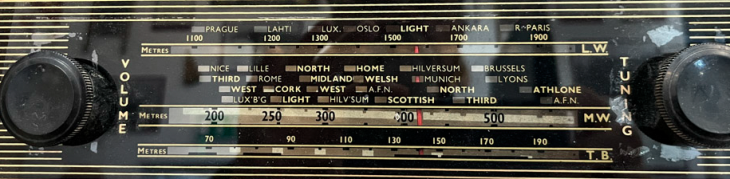
RETRO switches the display to a different format, reminiscent of old-time shortwave radios that showed stations on the dial in addition to frequencies. Here’s a reminder of one of those old radio dials:
And here is the ATS200 Retro display:
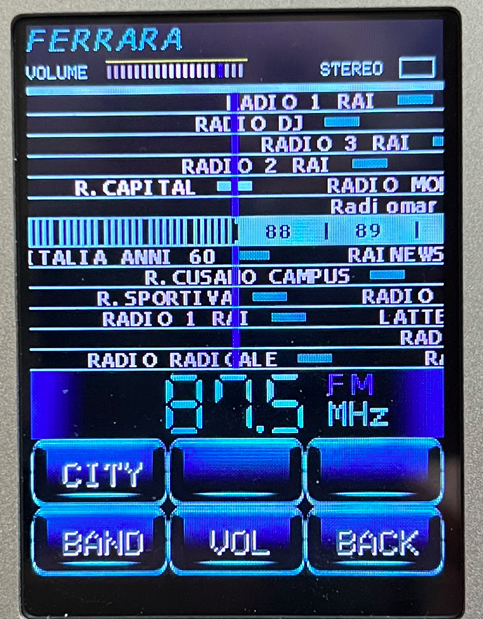
The specific cities are preloaded with the radio. RDS information for a currently tuned station is not shown. The Band button here gives a different band selection than the regular one, along with some retro hints:
- FM
- VHF
- SW1 – Night, Winter
- SW2 – Night
- SW3 – Mostly Night
- SW4 – Mostly Day
- SW5 – Day
- LW
- MW
INFO shows a compilation of information about the current settings and the unit (note firmware version and date):
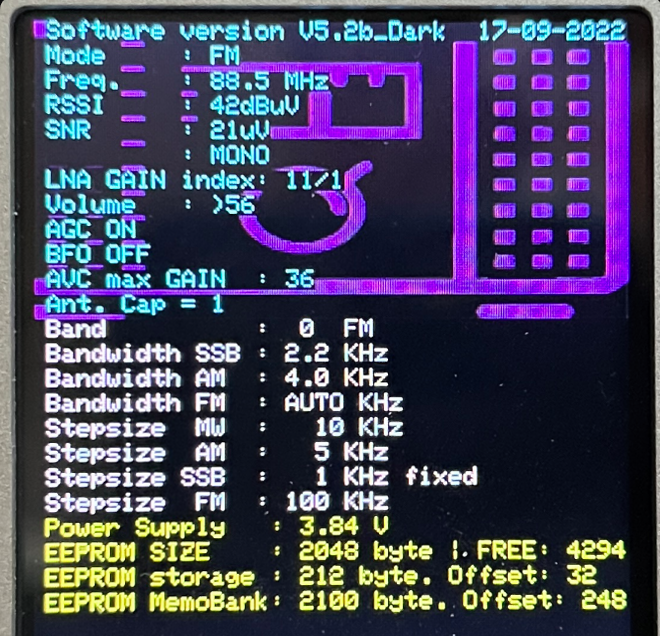
The FM button is the great mystery. When toggled on an overlay appears at the top of the display and the band is switched to FM. What is shown in that overlay is a station from the Retro screen.
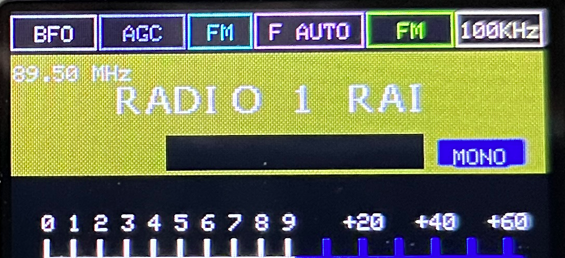
The tuning knob skips from frequency to frequency, including only those stations on the RETRO list. If by coincidence, one of the built-in frequencies matches an FM station with RDS in your area, the local station’s information will replace the factory data. If there were some way to load a list of your local stations into the radio (so you could tune them in this mode) it might be cool, but I can’t conceive of any way to accomplish that.
MEMO brings up a station storage feature. In the SETUP menu, there was an option to save text along with frequencies. On the MEMO page, use the knob to scroll through the memories. Press “ADD” on an empty row to add it and optionally turn the knob to select a letter to add; click the knob to advance to the next letter position. There appear to be 75 memory slots total.
The Unlabeled Buttons
There are three physical buttons around the display. The one on the upper left is the power button. A long press (almost 4 seconds) turns the radio on and off. A single press powers the flashlight.
The button on the lower left does triple duty. A double press turns the LNA on and off. A short press enables the touch screen lock and a long press enables the rotary knob lock.
The button on the lower right disconnects the current Bluetooth session, presumably so that you could pair with something else.
The Knob
The default function of the knob is to change frequency in a step set in the STEP option. Clicking it switches it function to volume control, and when pushed again to Squelch. In other contexts it controls screen brightness (under LIGHT) and attenuation (under ATT).
Preferences
It’s possible to operate the ATS200 with a finger, although sometimes clumsily. I’m still on the fence about whether a stylus is the best option or not.
So stay tuned for Part 2, performance. Also, this article may be updated as I test the radio.